BG Bucket Browser
shippedA desktop file manager for RunPod network volumes.
Problem
RunPod network volumes are S3 buckets with no window: you either mount them inside a pod or type s3 commands. Every model upload, every batch of outputs, meant opening a terminal and remembering paths.
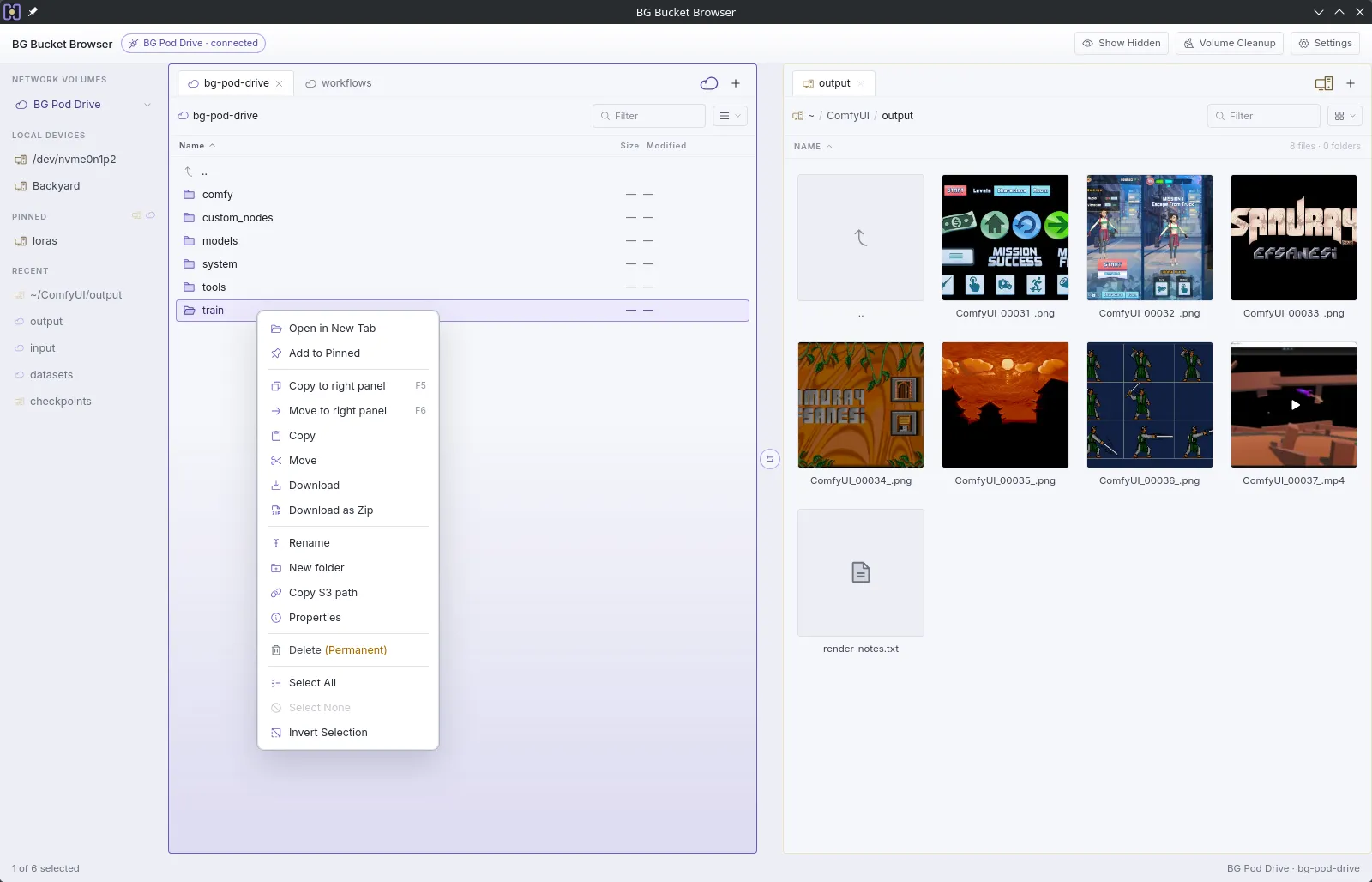
BG Bucket Browser puts the volume next to your disk, in two panes, and lets you drag.
What it does
Two panes
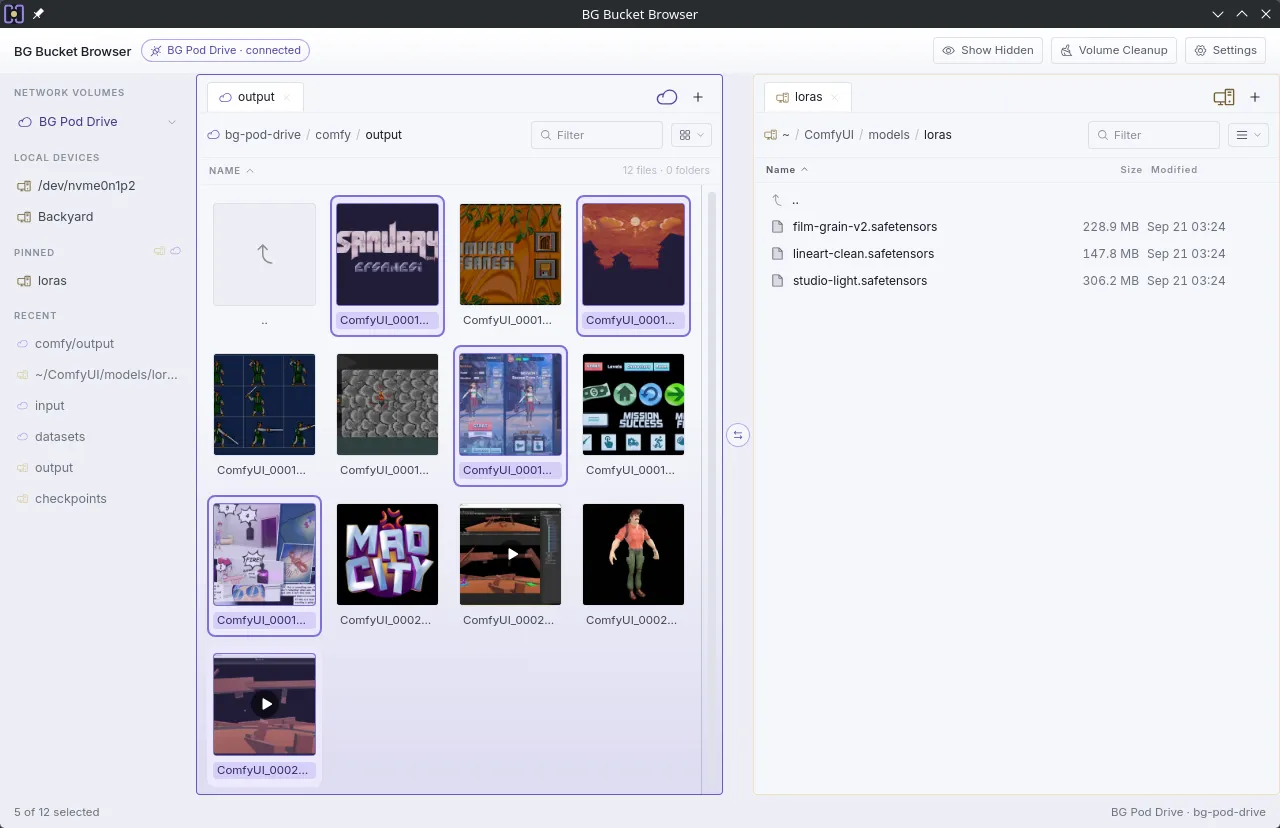
The volume on one side, your disk on the other, each with its own tabs and its own view. Select what you need and send it across.
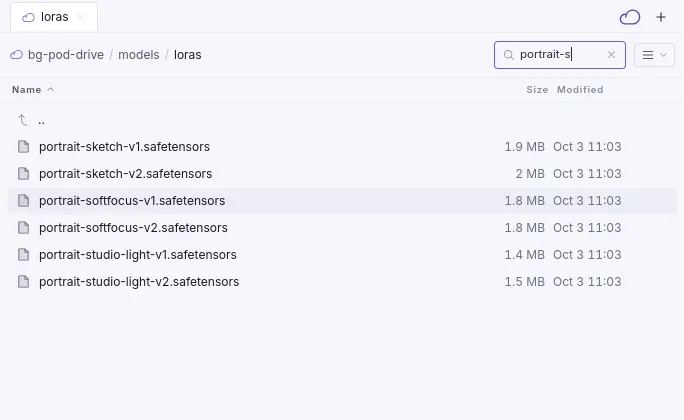
Find it by typing
Ctrl+F narrows a long folder to the files you mean.
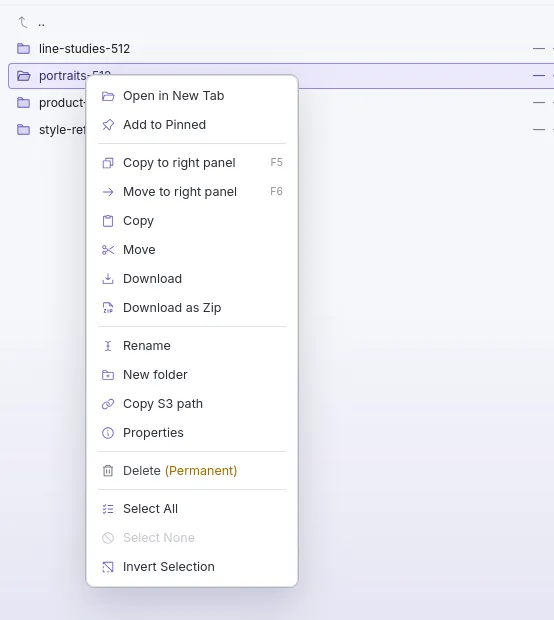
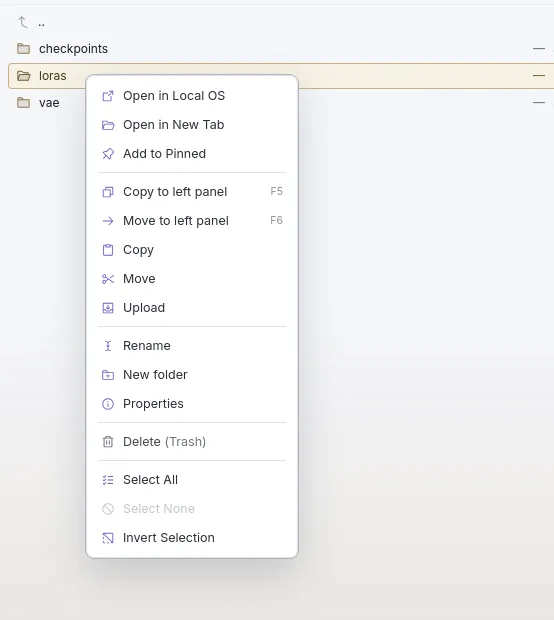
Right-click does the work
The menu knows which side it is on. On the volume: download, download as zip, copy the S3 path, and delete is permanent. On your disk: upload, open in the OS, and delete goes to the trash.
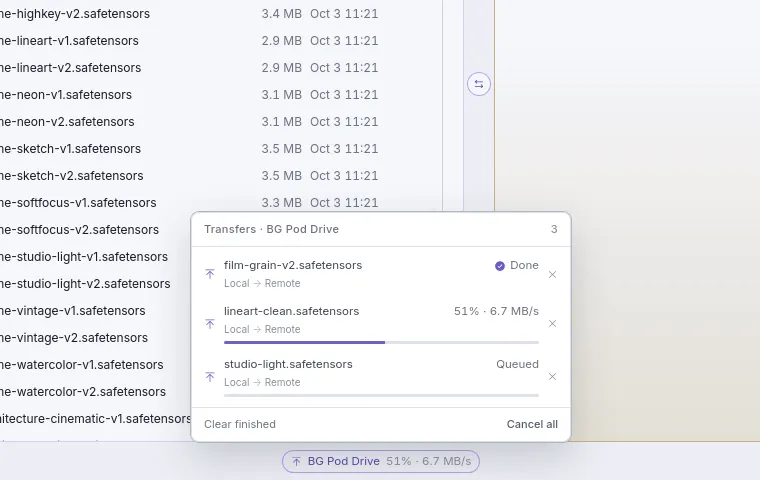
Transfers you can watch
A queue with progress and speed, one click away in the status bar.
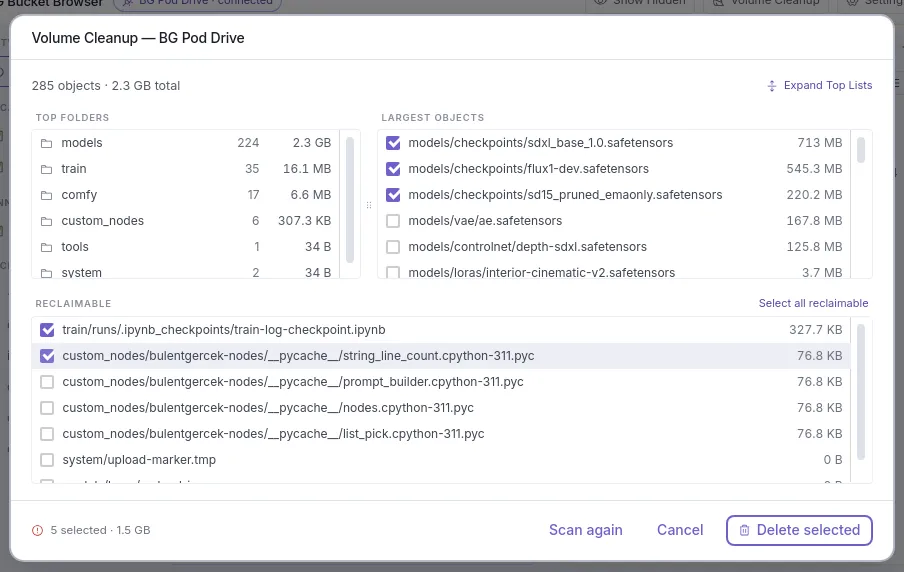
Volume cleanup
See what takes the space before you pay for it another month: top folders, largest objects, and the leftovers nobody needs.
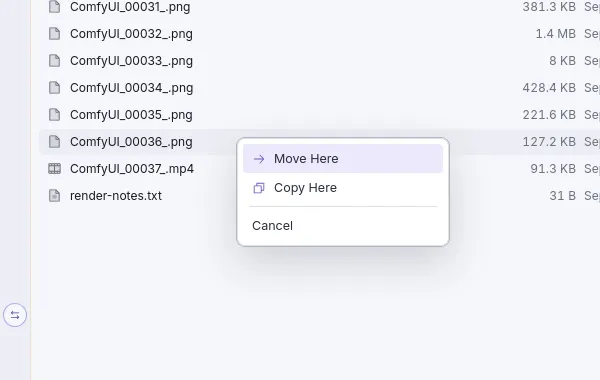
Drag across
Drop on the other pane and choose: move here or copy here.
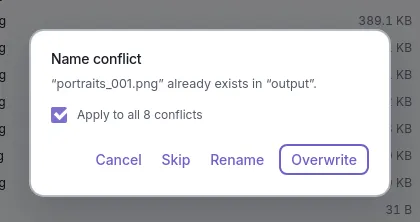
Nothing overwritten by accident
A name conflict stops and asks: skip, rename or overwrite, once or for all of them.
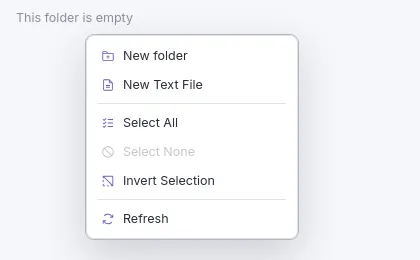
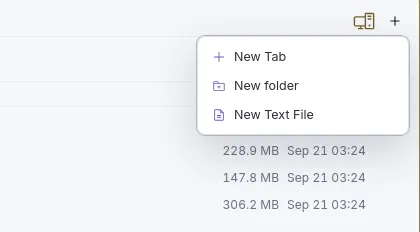
New, from where you are
A folder or a text file from a right-click on empty space, or from the + on the pane header.
It knows it is S3
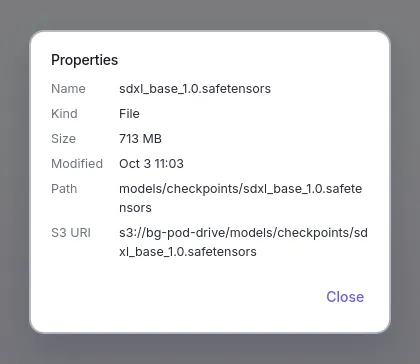
Properties show the S3 URI next to size and date.
Report it from the app
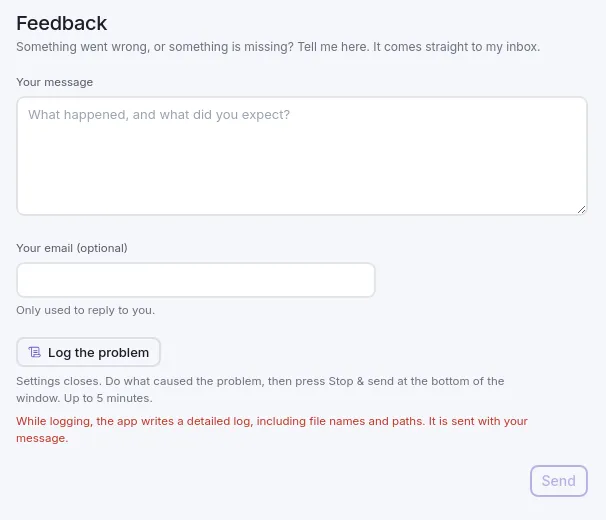
Settings → Feedback sends a message from the app, no email client or GitHub account needed. Log the problem and the app keeps a log of up to five minutes of what you do; you see it before it goes.
Dark, light, system
The app follows your theme; so do its screenshots on this site.
Install
Windows and macOS: download the installer from GitHub Releases. Linux: build it from source; the README has the steps.
Connect a volume
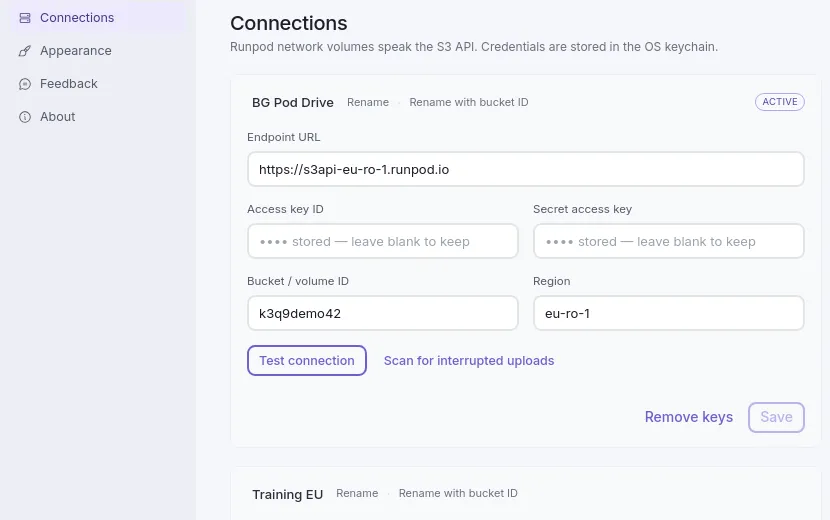
Endpoint, region, volume ID and an S3 key from your RunPod account. Entered once; the keys go to your system keychain, not to a file.